How to connect Zoho CRM to your website (for UK small business owners)
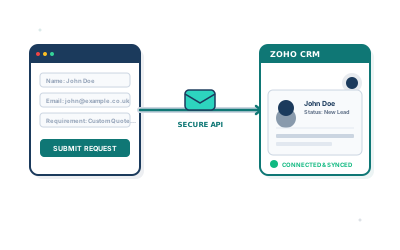
Most small business websites do the same thing: they collect enquiries through a contact form, send an email to your inbox, and then nothing happens. The lead sits in your Gmail alongside newsletters and spam, you forget to follow up, and three days later the prospect has hired someone else.
Connecting Zoho CRM to your website fixes this. Enquiries go straight into a proper pipeline, get assigned to you automatically, and trigger reminders so nothing falls through the cracks. This guide walks through the main ways to set it up, what actually works, and where people usually get stuck.
Option 1: Zoho's built-in web forms
The simplest route is Zoho's own Web Forms tool, which is included in most Zoho CRM plans (including the free tier).
You build a form inside Zoho, map each field to a CRM record (Lead or Contact), and Zoho gives you an embed snippet. Drop the snippet into your website and you're done. Submissions create CRM records directly.
When this works well:
- Your website is built on WordPress, Wix, or Squarespace
- You want a basic contact or enquiry form
- You don't need the form to match your brand exactly
The catch: Zoho's native forms look like Zoho's forms. You can customise colours and fonts, but they're clearly not native to your site. For a lot of small business owners that's fine. If you care about design consistency, you'll want a different approach.
To set one up: go to CRM → Leads → Web Forms, create a form, configure field mapping, and copy the iframe or script embed.
Option 2: your own form + Zoho API
If you already have a contact form on your website, or you want full control over the design, you can post submissions directly to the Zoho CRM API.
Zoho uses OAuth 2.0 for authentication. The flow is:
- Register your application in the Zoho Developer Console, using the
.eudomain if you're on a UK/EU Zoho account - Get a
client_idandclient_secret - Exchange these for an access token
- POST lead data to
https://www.zohoapis.eu/crm/v7/Leads
A minimal server-side call (Node.js) looks like this:
const response = await fetch('https://www.zohoapis.eu/crm/v7/Leads', {
  method: 'POST',
  headers: {
    'Authorization': `Zoho-oauthtoken ${accessToken}`,
    'Content-Type': 'application/json',
  },
  body: JSON.stringify({
    data: [{
      Last_Name: formData.name,
      Email: formData.email,
      Phone: formData.phone,
      Description: formData.message,
      Lead_Source: 'Website',
    }]
  })
});
Important: Never put your Zoho credentials in frontend JavaScript. This call must go through your own backend or a serverless function. Otherwise your API keys are visible to anyone who opens DevTools.
Access tokens expire after an hour, so you'll also need to handle token refresh using your refresh_token. This is where most DIY integrations break: developers set it up once, the token expires, and suddenly no leads are being captured and nobody notices for weeks.
Option 3: Zoho Flow or Zapier (no-code middle layer)
If you don't want to touch code, a middleware tool like Zoho Flow or Zapier can bridge your website form and your CRM.
The pattern is:
- Your form submits to a webhook URL
- Zoho Flow or Zapier receives it
- They create the CRM record on your behalf
Most form tools (Gravity Forms, Typeform, Tally, Contact Form 7) support webhook submissions out of the box. You configure the mapping in the no-code tool. No API calls, no token management.
Zoho Flow is included with some Zoho One plans and natively understands Zoho CRM's field structure. Zapier has a broader integration library but costs more as you scale up.
This approach is reliable and low-maintenance. The downside is adding another service to your stack, one more thing to break or bill you.
What to do after a lead lands in Zoho
Getting leads into the CRM is half the job. The other half is making sure something happens with them.
Set up a workflow rule in Zoho CRM that triggers when a new Lead is created from a web source:
- Go to Settings → Automation → Workflow Rules
- Trigger: Record Created, where Lead Source = Website
- Actions: Assign to a user, set a follow-up task for 24 hours out, optionally send an acknowledgement email to the lead
This takes about 10 minutes to configure and means every enquiry gets a human action within a day, without you having to remember.
Common problems and how to avoid them
Duplicate leads: If someone submits your form twice, you'll get two CRM records. Set up a deduplication rule in Zoho on the Email field.
GDPR consent: Your form must include a clear consent checkbox if you're marketing to UK contacts. Store this in a custom CRM field so you have a record of when consent was given.
Test with real data: It sounds obvious, but submit your own form after you set this up and confirm the record appears in CRM with all the fields populated correctly. API integrations that work in development sometimes fail in production because of environment differences.
UK vs global Zoho accounts: If you signed up via Zoho.eu, your API endpoints use zohoapis.eu, not zohoapis.com. Using the wrong domain will get you authentication errors that are annoying to diagnose.
When to get help
The native web forms approach is genuinely something a business owner can set up in an afternoon. The API approach is doable if you have a developer, but the token refresh logic, error handling, and GDPR compliance details add up quickly.
If you want a CRM integration that's reliable, stays up without maintenance, and fits your existing website design properly, that's the kind of work I do at Etminan AI Solutions. I build these integrations as part of broader CRM and automation projects for UK small businesses, and I can scope the work properly so there are no surprises.
Get in touch if you want to talk through what a clean CRM integration would look like for your business.